Creating a View
To create our own view, we create a subclass of theView class. The basics look like this:package io.happycoding.helloworldapp;
import android.content.Context;
import android.util.AttributeSet;
import android.view.View;
public class CustomView extends View {
public CustomView(Context context, AttributeSet attr) {
super(context);
}
}
View, we can use it just like any other View. For example we can use it in our layout XML file:<?xml version="1.0" encoding="utf-8"?>
<LinearLayout xmlns:android="http://schemas.android.com/apk/res/android"
android:layout_width="match_parent"
android:layout_height="match_parent"
android:gravity="center"
android:orientation="vertical">
<view
class="io.happycoding.helloworldapp.CustomView"
id="@+id/custom-view-id"
android:layout_width="fill_parent"
android:layout_height="fill_parent" />
</LinearLayout>
Custom Drawing
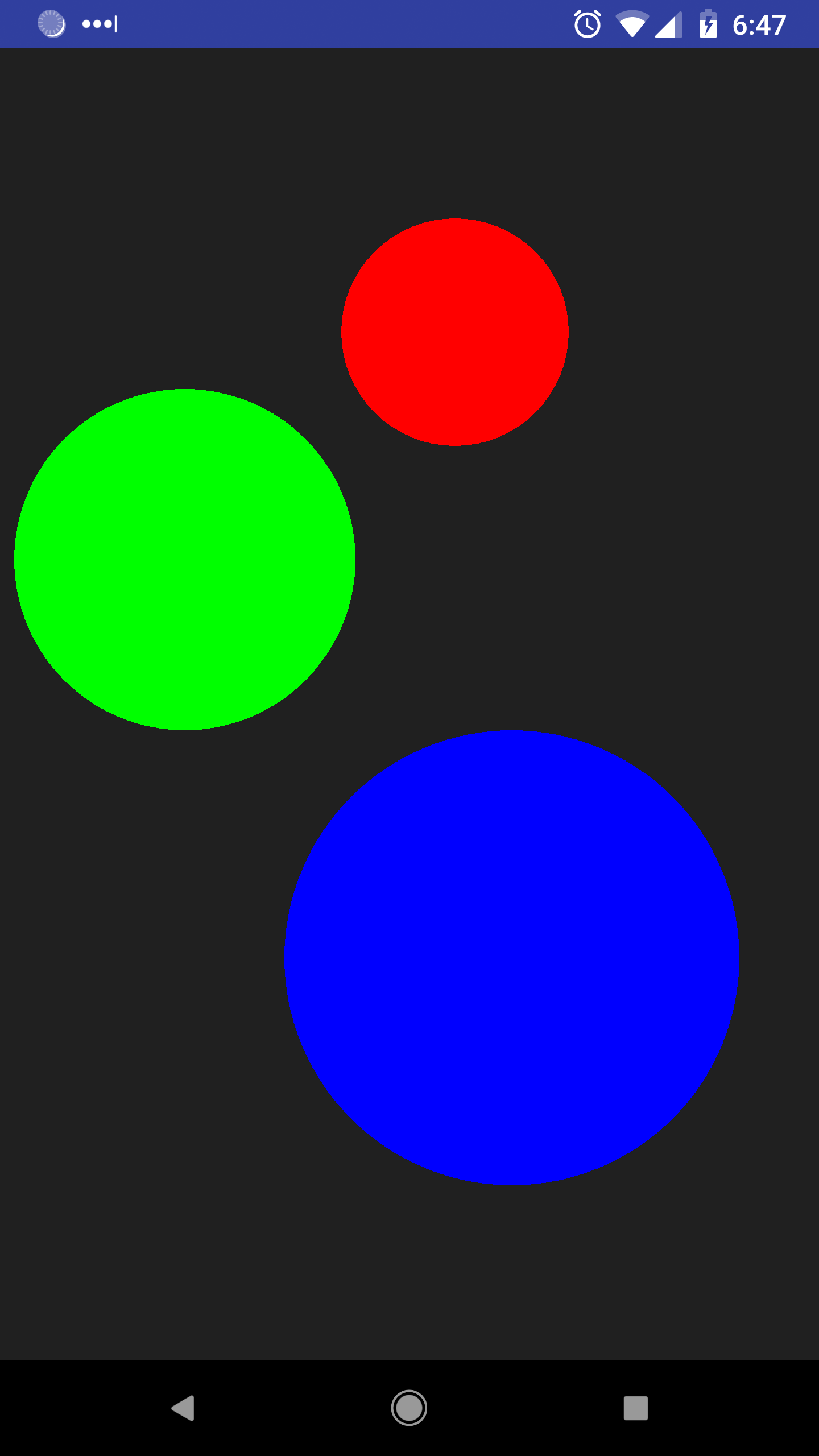
To draw something in our view, we need to override theonDraw() function, which is called when Android renders the view on screen. The onDraw() function takes a Canvas argument, which contains functions that allow us to draw stuff inside our view. Here’s an example:package io.happycoding.helloworldapp;
import android.content.Context;
import android.graphics.Canvas;
import android.graphics.Color;
import android.graphics.Paint;
import android.util.AttributeSet;
import android.view.View;
public class CustomView extends View {
public CustomView(Context context, AttributeSet attr) {
super(context);
}
@Override
public void onDraw(Canvas canvas){
canvas.drawColor(Color.rgb(32,32,32));
Paint redPaint = new Paint();
redPaint.setColor(Color.rgb(255, 0, 0));
Paint greenPaint = new Paint();
greenPaint.setColor(Color.rgb(0, 255, 0));
Paint bluePaint = new Paint();
bluePaint.setColor(Color.rgb(0, 0, 255));
canvas.drawCircle(800, 500, 200, redPaint);
canvas.drawCircle(325, 900, 300, greenPaint);
canvas.drawCircle(900, 1600, 400, bluePaint);
}
}
onDraw() function and uses the canvas argument to draw three circles on a gray background. Notice how Android uses the Paint class to specify properites like fill color.Our app now looks like this:
Width and Height
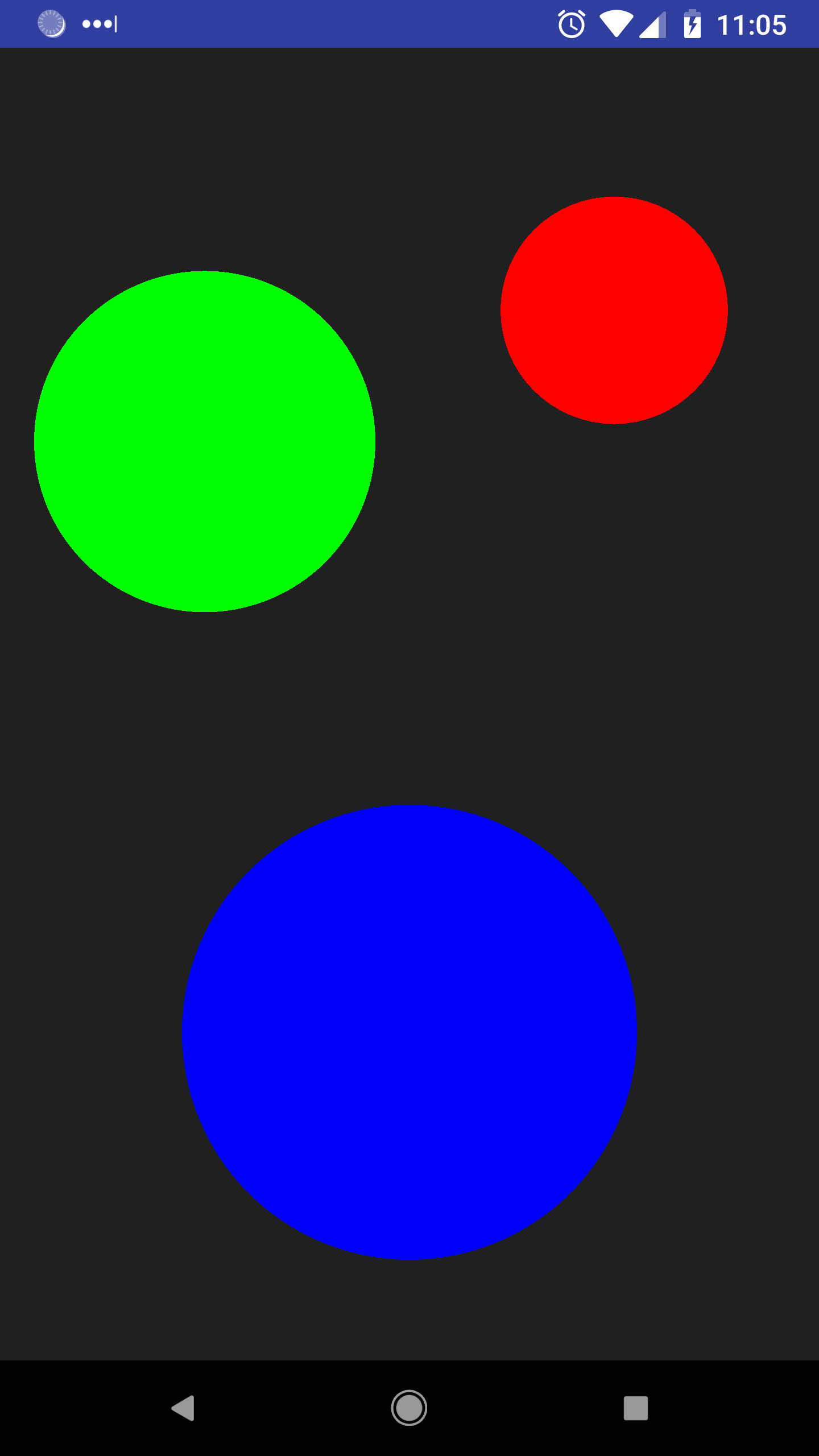
Instead of hard-coding the positions of our drawings, we could use thegetWidth() and getHeight() functions to base the drawing off the size of the view.package io.happycoding.helloworldapp;
import android.content.Context;
import android.graphics.Canvas;
import android.graphics.Color;
import android.graphics.Paint;
import android.util.AttributeSet;
import android.view.View;
public class CustomView extends View {
public CustomView(Context context, AttributeSet attr) {
super(context);
}
@Override
public void onDraw(Canvas canvas){
canvas.drawColor(Color.rgb(32,32,32));
Paint redPaint = new Paint();
redPaint.setColor(Color.rgb(255, 0, 0));
Paint greenPaint = new Paint();
greenPaint.setColor(Color.rgb(0, 255, 0));
Paint bluePaint = new Paint();
bluePaint.setColor(Color.rgb(0, 0, 255));
canvas.drawCircle(getWidth()*.75f, getHeight()*.2f, 200, redPaint);
canvas.drawCircle(getWidth()*.25f, getHeight()*.3f, 300, greenPaint);
canvas.drawCircle(getWidth()*.5f, getHeight()*.75f, 400, bluePaint);
}
}
Input Events
TheView
class also provides several event callback functions that you can
override. Android automatically calls these functions when the user does
stuff like touch the screen. This allows us to take some action in
response to user input.For example, the
onTouchEvent() function is called whenever the user touches the screen inside the view: @Override
public boolean onTouchEvent(MotionEvent event) {
System.out.println("x: " + event.getX());
System.out.println("y: " + event.getY());
return true;
}
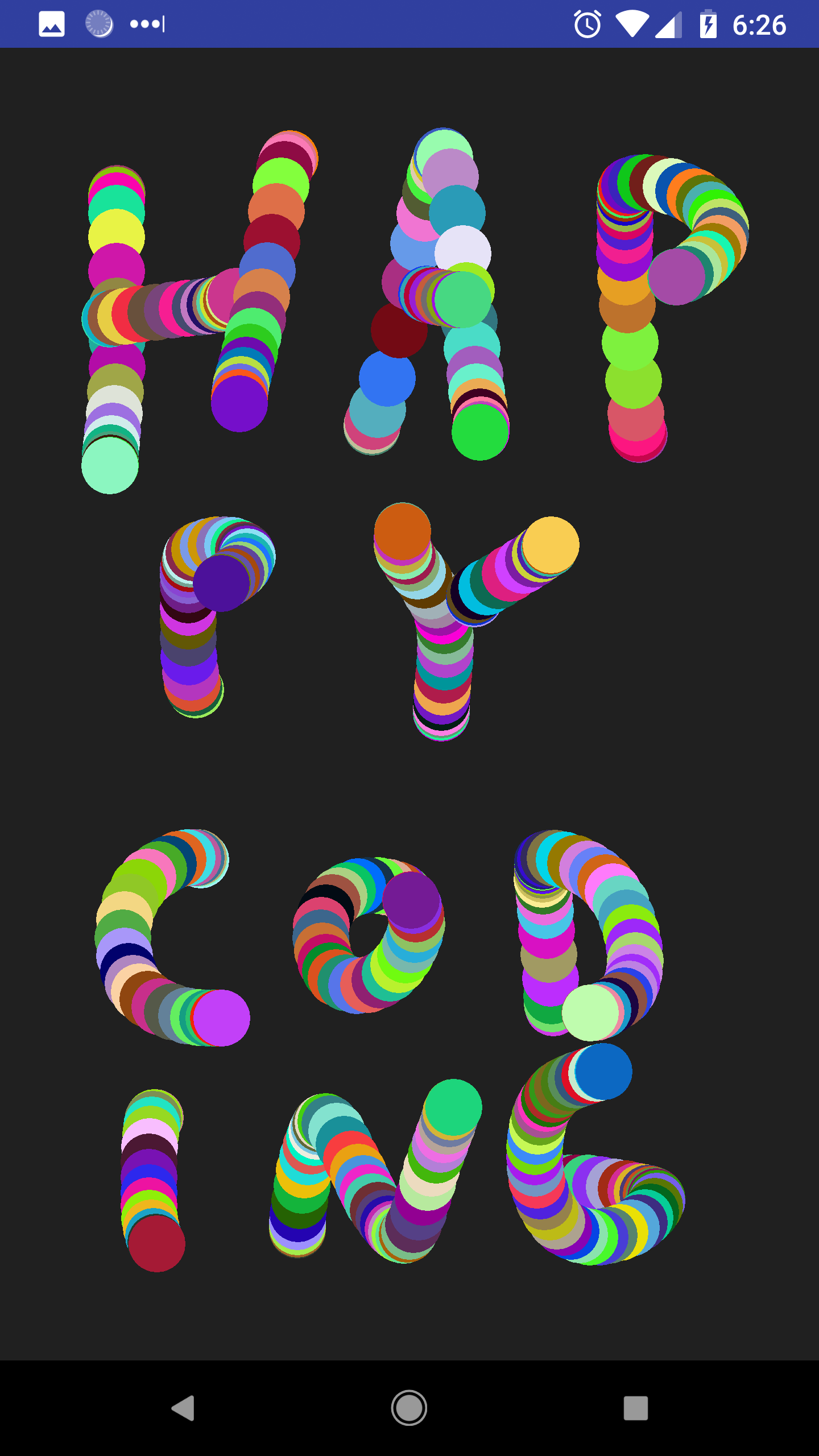
MotionEvent argument to get information about the input, such as the position of the touch.Here’s an example that stores each touch position in a list, and then draws the points in the
onDraw() function:package io.happycoding.helloworldapp;
import android.content.Context;
import android.graphics.Canvas;
import android.graphics.Color;
import android.graphics.Paint;
import android.graphics.Point;
import android.util.AttributeSet;
import android.view.MotionEvent;
import android.view.View;
import java.util.ArrayList;
import java.util.List;
public class CustomView extends View {
private List<Point> points = new ArrayList<>();
public CustomView(Context context, AttributeSet attr) {
super(context);
}
@Override
public void onDraw(Canvas canvas){
canvas.drawColor(Color.rgb(32,32,32));
for(Point p : points){
Paint paint = new Paint();
paint.setColor(Color.rgb((int)(Math.random()*256), (int)(Math.random()*256), (int)(Math.random()*256)));
canvas.drawCircle(p.x, p.y, 50, paint);
}
}
@Override
public boolean onTouchEvent(MotionEvent event) {
points.add(new Point((int)event.getX(), (int)event.getY()));
invalidate();
return true;
}
}
onTouchEvent() function calls the invalidate() function. This tells Android to redraw the view, which triggers the onDraw() function being called again.The result is a simple drawing app that shows randomly colored circles wherever the user touches:
Comments
Post a Comment