
First things first. So what is ItemDecoration? This is how official doc puts it.
An ItemDecoration allows the application to add a special drawing and layout offset to specific item views from the adapter’s data set. This can be useful for drawing dividers between items, highlights, visual grouping boundaries and more.
We
can not simply say that ItemDecoration is just a divider with a fancy
name. It’s much more than that. A divider, as the name suggests, can
only be drawn between items. But ItemDecoration can be drawn on all four
sides of the item. ItemDecoration gives full control to the developers
in measuring and drawing the decorations. A decoration can be a divider
or just an inset.
Don’t add dividers as views —It affects performance
I
have personally seen some developers taking shortcuts to add dividers
to the RecyclerView. The reason is obvious. ListView had a native way to
add the divider. You can add the divider through xml itself.
<ListView
    android:id="@+id/activity_home_list_view"
    android:layout_width="match_parent"
    android:layout_height="match_parent"
    android:divider="@android:color/black"
    android:dividerHeight="8dp"/>
But
with RecyclerView, you can not directly add a divider. You need to add
an ItemDecoration which can draw the divider. But developers find it
difficult and directly add the dividers to the view, instead of using
the item decoration.
<LinearLayout android:orientation="vertical">    <LinearLayout android:orientation="horizontal">        <ImageView />        <TextView />    </LinearLayout>    <View
        android:width="match_parent"
        android:height="1dp"
        android:background="#333" /></LinearLayout>
Whenever we are taking a shortcut it might have some adverse effects. In this case it affects performance.
When
adding the divider to the layout, we are increasing the view count. We
know that having less number of views in the layout is better for
performance. Sometimes adding the divider as a view increases the layout
hierarchy. Consider the above example, we really don’t need the outer
linear layout. To add a divider we had to create an additional outer
layout.
Don’t add dividers as views — It has side effects
During
the item animation divider will be animated along with the animation,
since divider is part of the view. To get more clarity, look at the
following gif.
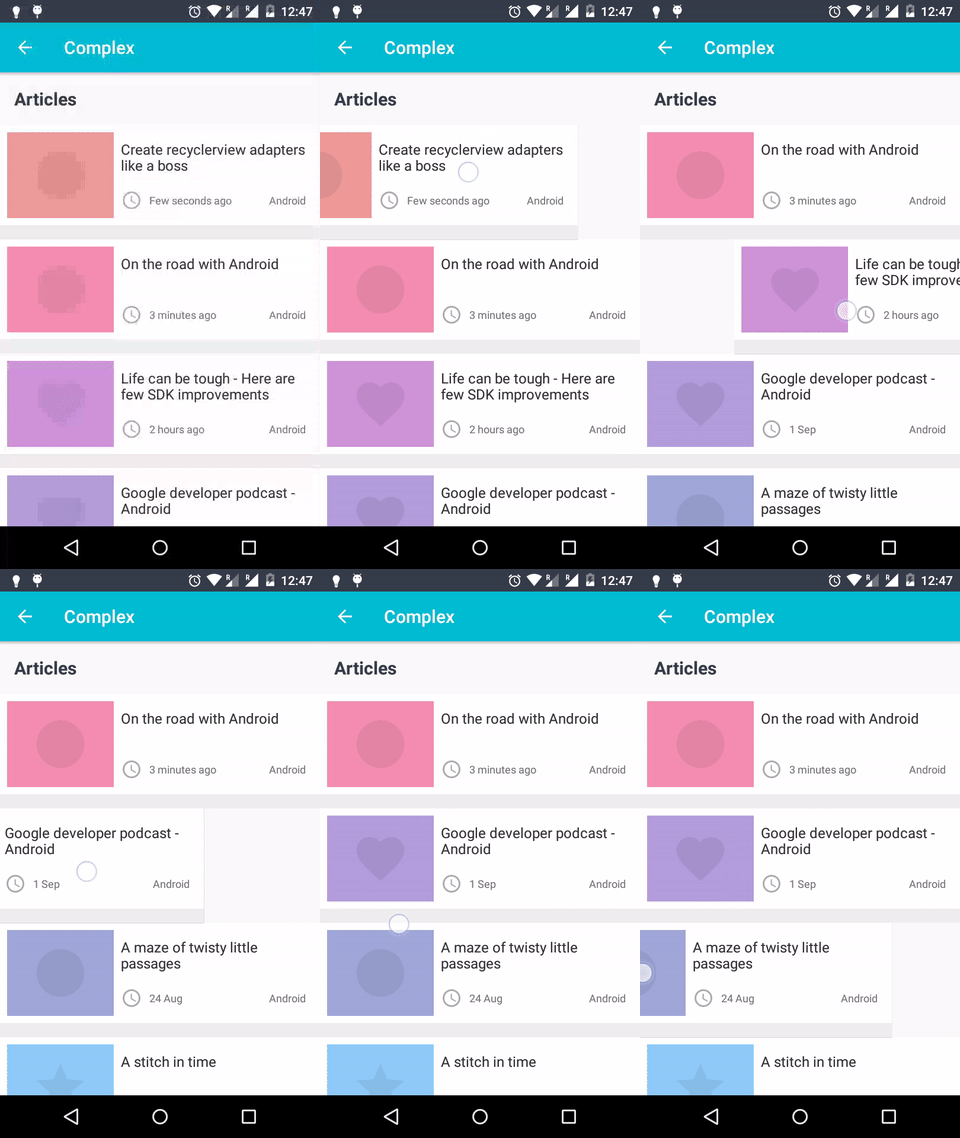
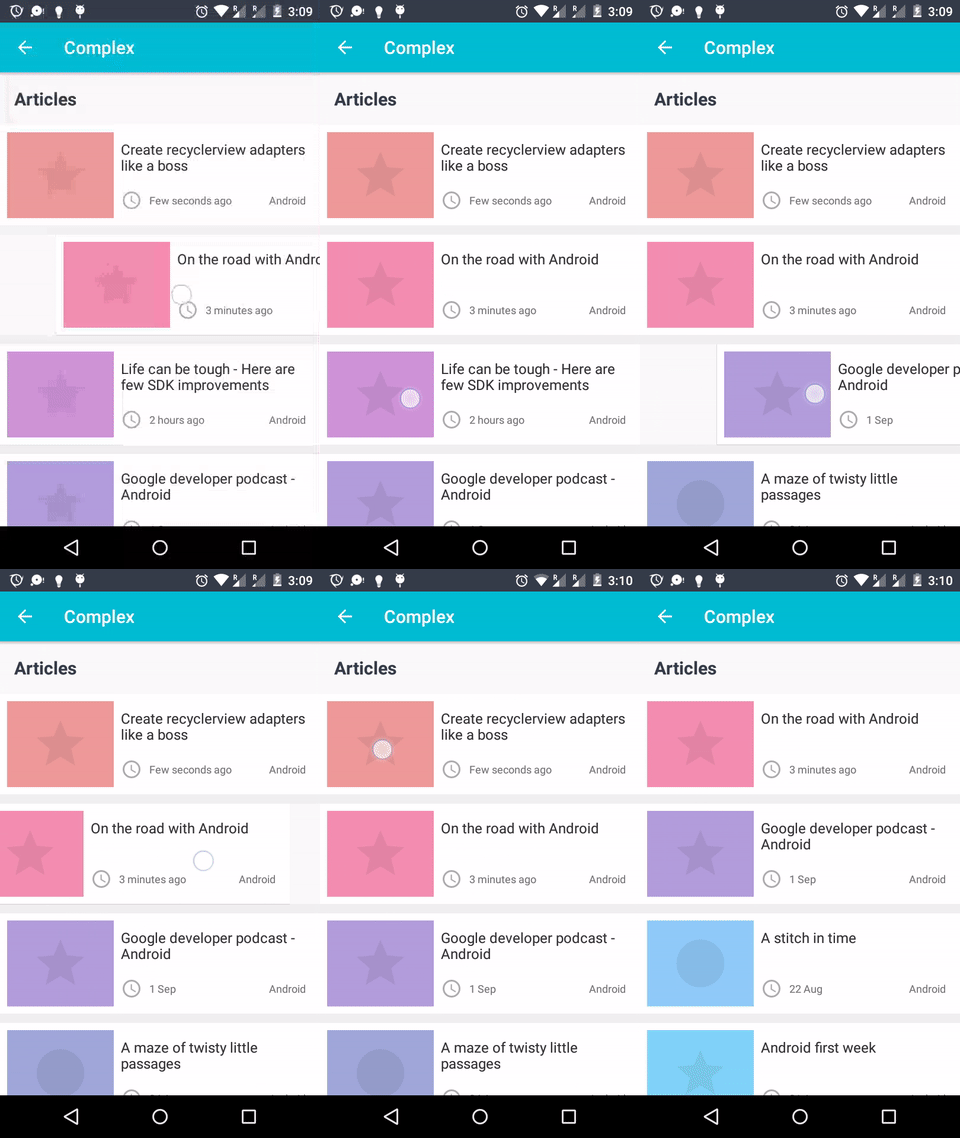
Clearly dividers should not be animated along with the item view. It should be separate from the item view’s animation like this
Don’t add dividers as views — It lacks flexibility
You
don’t have control over the dividers if it’s part of the view. The only
thing that you can do is based on the item’s position visibility of the
divider can be changed. In case you want to do just more than
visibility, item decorations are flexible.

In
the above image for the last item in the group divider fills the entire
width. Other dividers have a margin of 56dp to their left side. Here is
the ItemDecorator’s onDraw code.
Don’t add dividers as views —Use ItemDecoration
Writing your own item decoration is simple. You just need to create a class which extends from ItemDecoration. Override the getItemOffsets() and onDraw() methods. For a sample implementation take a look here.
With the release of support lib’s 25.0.0 version, we have a new class “DividerItemDecoration”. This is a utility class with which you can add simple dividers through decoration.
Notes
- Multiple ItemDecorations can be added to a single RecyclerView. Time to make your creativity run wild.
- All decorations are drawn before drawing the items. In case you want to draw decorations after drawing the view, override onDrawOver() method instead of onDraw().
So next time when you want to add dividers to the RecyclerView, don’t use views inside layout. Instead, use ItemDecoration.
Comments
Post a Comment